
Organizing a gaming PC setup becomes tricky once a number of cables connect to the computer, the monitor, speakers, keyboard, mouse, router, and other peripheral devices. An organized gaming PC setup does not only create an aesthetic gaming table but will also make the setup easy to clean, change the hardware, identify cables, and access your hardware devices.
With basic cable organization, you will be able to keep the gaming setup organized without having to do some significant work on your table. All you need to know is the type of cables you have, where they should be placed, and how to tie them without applying too much pressure to the wires.
This is how you can organize your PC cables for a tidy and well-managed gaming setup.
1. Identify Every Cable Before Organizing
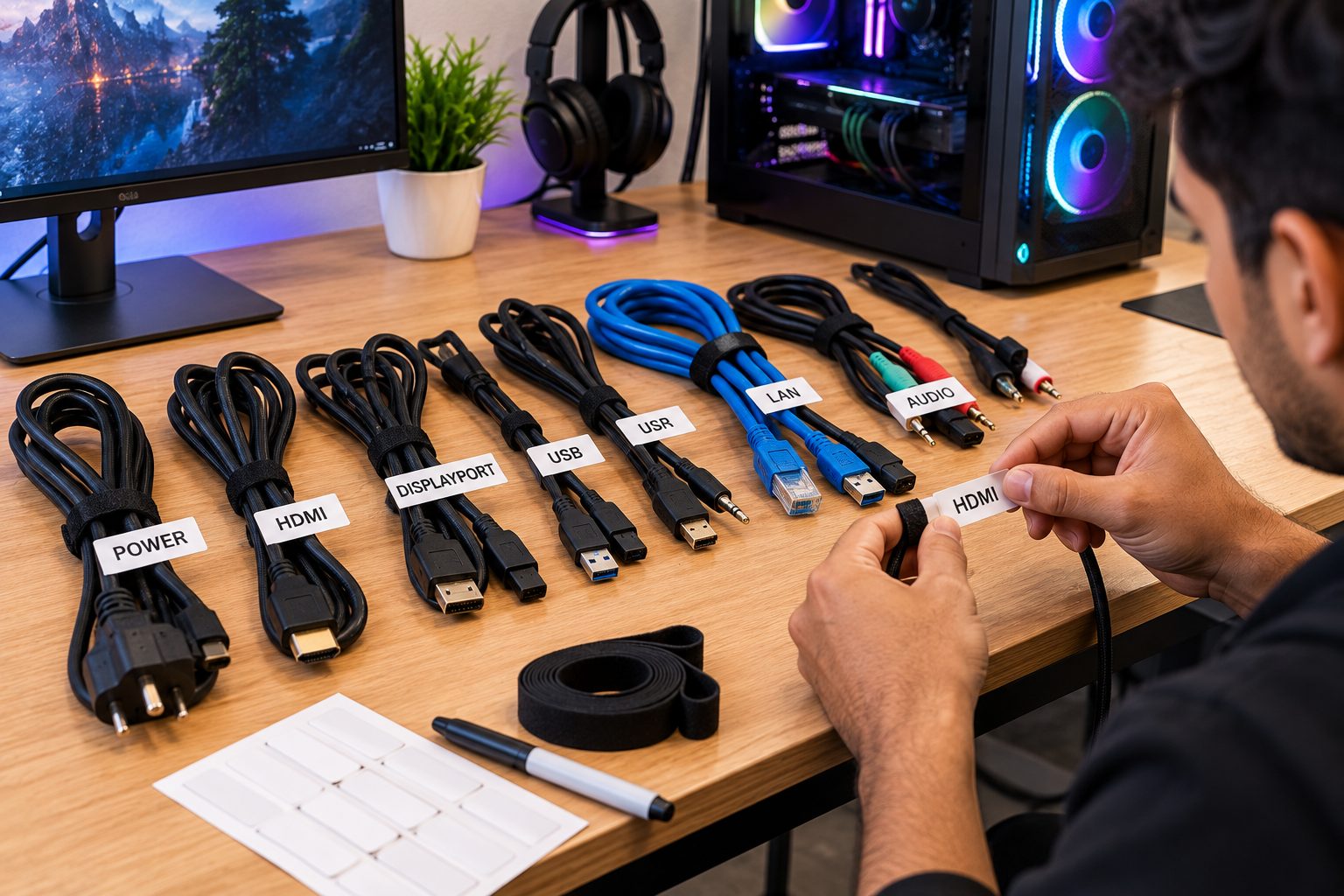
Begin by unplugging the cables in your gaming area and know which cable goes where.
Some common cables found on a typical gaming computer include:
- Computer power
- Screen power
- DisplayPort / HDMI
- Keyboard
- Mouse
- Headset
- Speakers
- Network cable
- Accessories via USB
- Microphone
- Webcam
- RGB Lighting
- External Storage
- Game controllers
- Charger
Once you know the function of every cable, it will be easier for you to determine its route.
You can also identify those cables that have similar looks. This becomes especially helpful if there are many USB, HDMI, and power cables behind your desk.
2. Separate Power and Data Cables
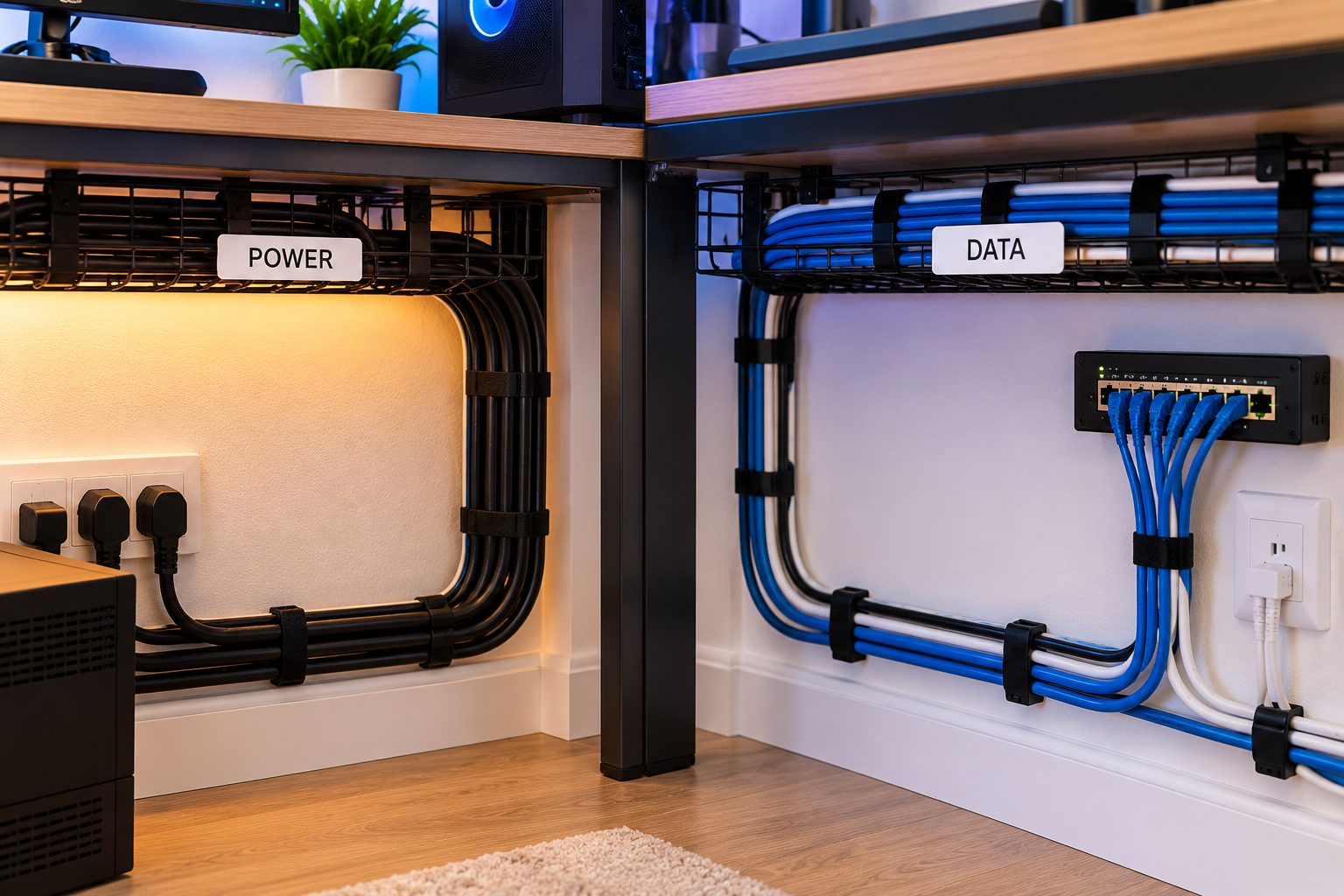
Gaming stations may involve power cables as well as data cables. Sorting them separately would make the installation more comprehensible.
For instance, power cables can go one way across the desk, whereas HDMI, DisplayPort, Ethernet, USB, and audio cables can go another way.
Do not try to cram cables into a very small area just because you want them to be out of sight.
It is essential that they fit without being bent unnaturally.
3. Use Cable Ties to Bundle Similar Cables
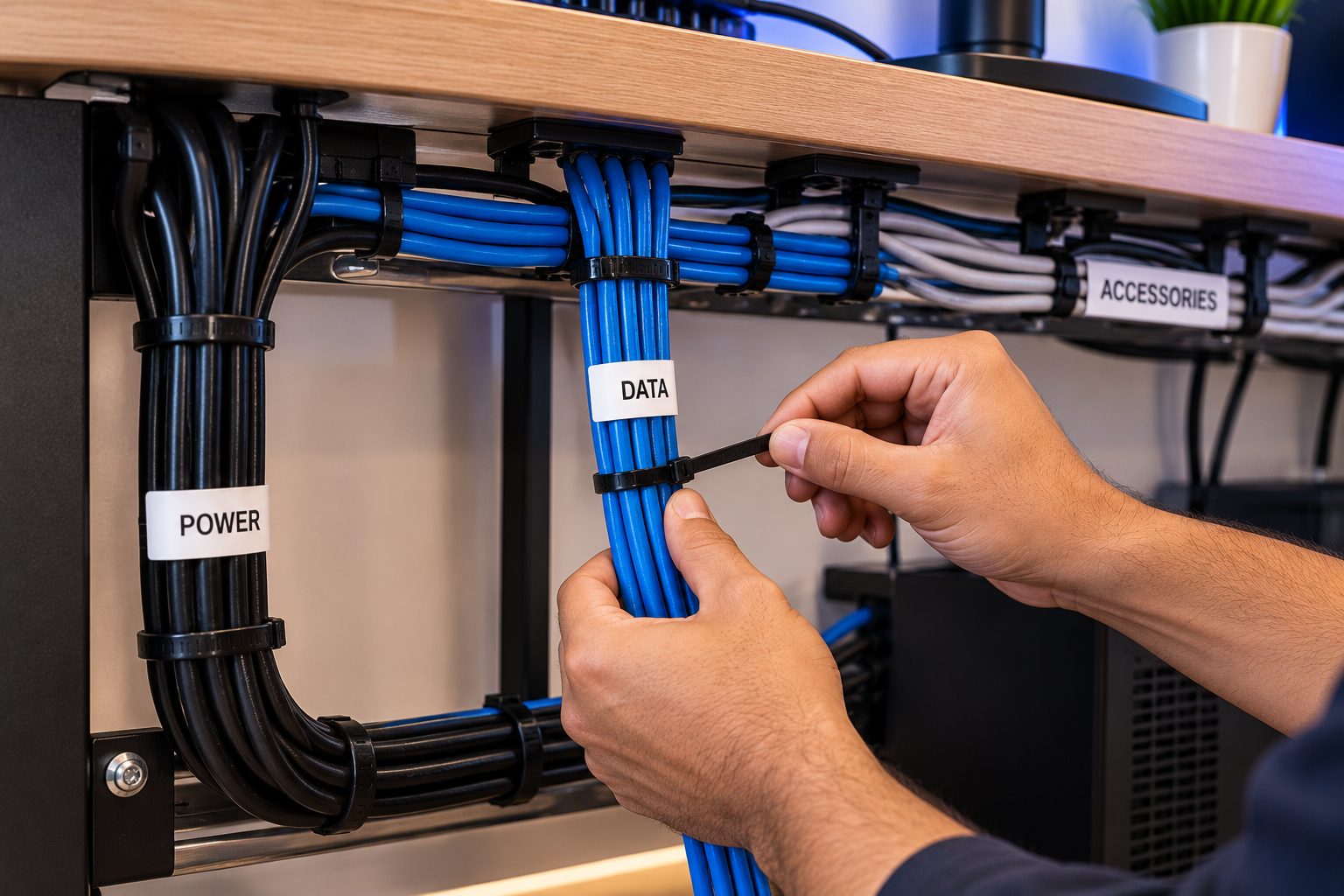
An easy way to organize your cables is through the use of cable ties.
The similar cables can be grouped and tied at appropriate points as per the need. For instance, all monitor cables can be grouped behind the desk, whereas the keyboards, mouse, and headset cables can have a separate path.
Cable ties come in various sizes and materials. Use an appropriate one depending on the size of the cable bundle and the conditions under which it will be applied.
It is advisable not to tie the cable ties too tightly since cables should not be compressed. Tight binding will cause extra stress on the insulation layer.
If you regularly remove some of your cables, you can use reusable cable ties for convenience.
4. Route Cables Behind the Desk
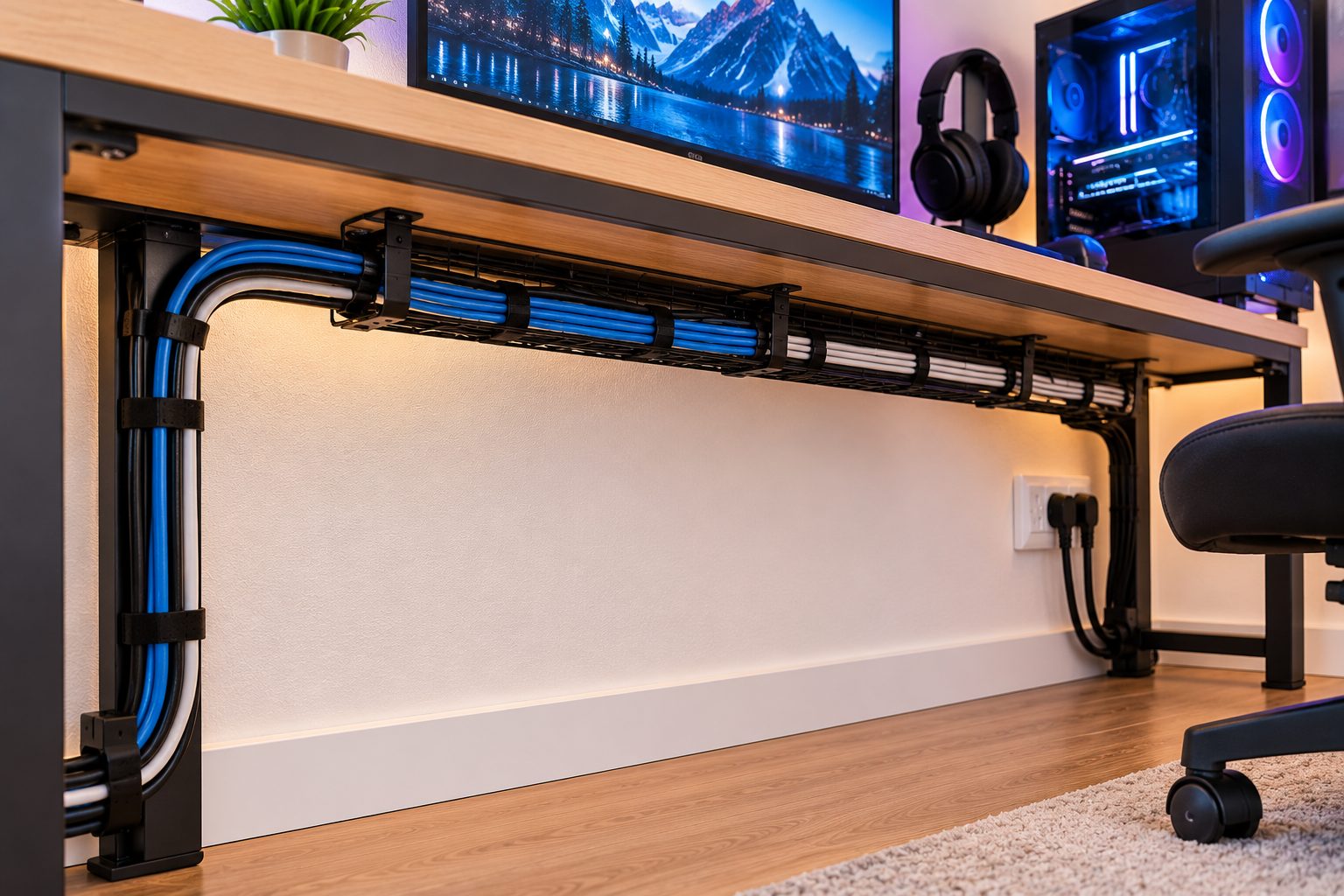
The rear of the gaming desk is usually where the best cable management occurs. Rather than leaving the wires dangling loosely on the front side of the gaming desk, it is better to route them toward the rear of the desk.
This can be done by using appropriate clips, sleeving of wires, wire trays, or ties.
Make sure you have enough wire before fastening them in any manner so that they provide adequate room for moving the monitor, keyboard, mouse, or any other accessories.
This is very critical for gaming accessories, such as the mouse cable should have sufficient mobility.
5. Install a Cable Tray Under the Desk
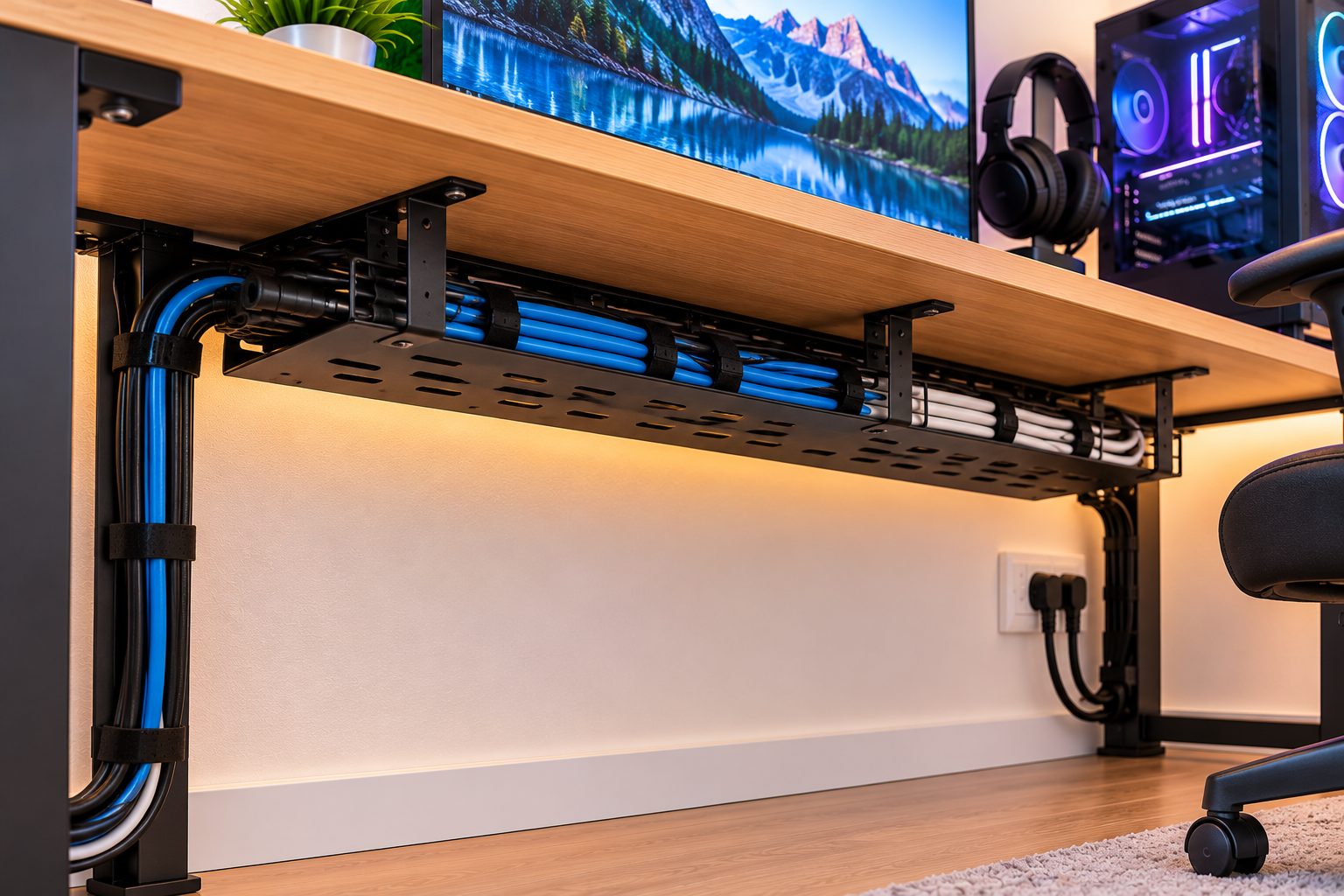
A cable tray could be useful in keeping power strips, adapters, and extra cables beneath the desk.
It may help in decreasing the number of dangling cables towards the ground and simplify cleaning procedures. Cables will not get entangled with your feet in such a case.
Remember to properly arrange the power strip and the adapters so that they would have proper ventilation. There should not be an urge to connect more items to a power strip just because it has enough space for them.
6. Keep the Floor Clear
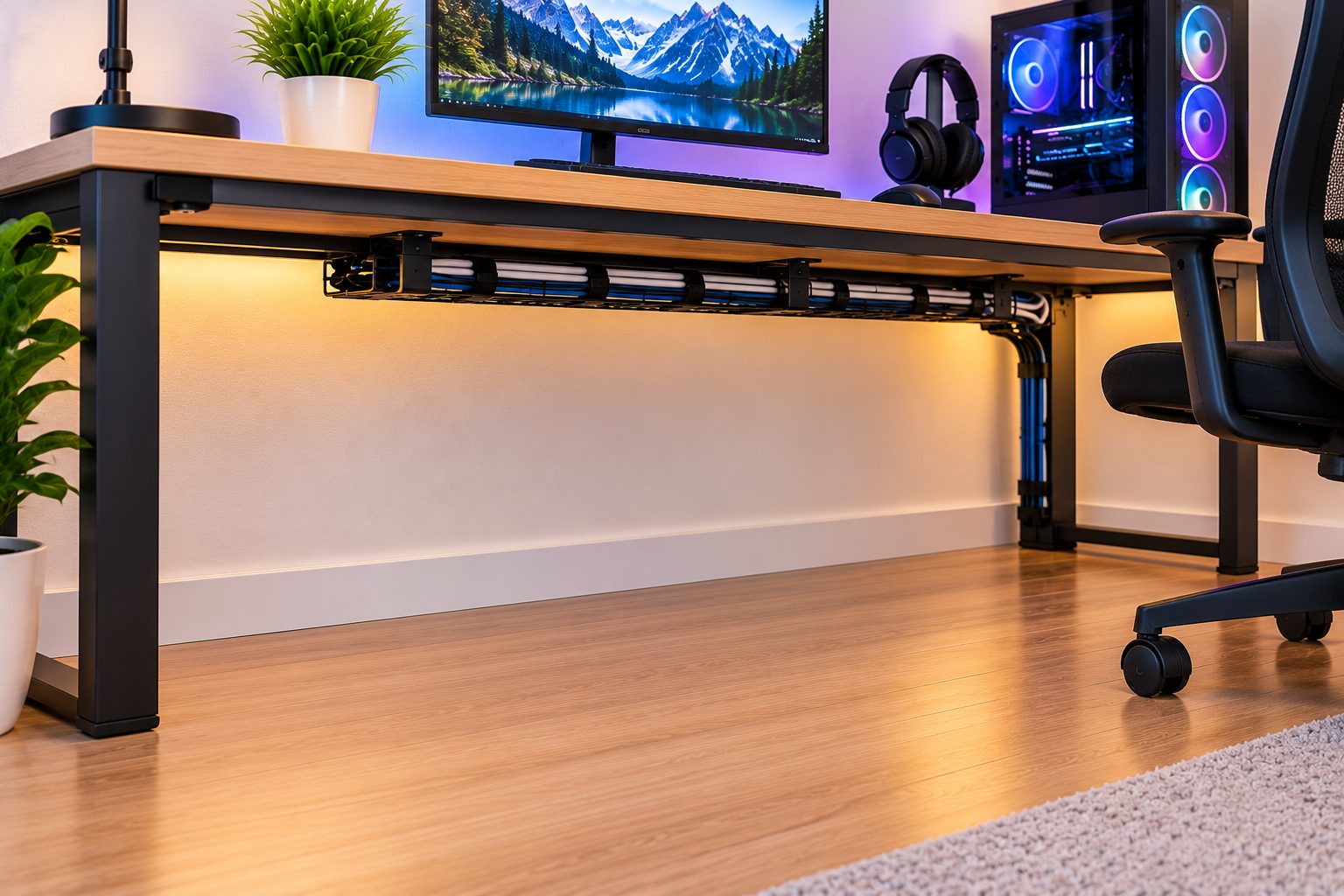
Several wires running through the floor space of a gaming set up is likely to make it an uncomfortable place.
The wires could end up being walked on, tripped over, or even pulled when moving around the chair.
It is advisable to make sure that you have your wires running along the side or behind the desk. Where this is not possible, ensure you have the right floor protection for such wires.
Cleaning becomes much easier without any wires on the floor.
7. Avoid Sharp Bends
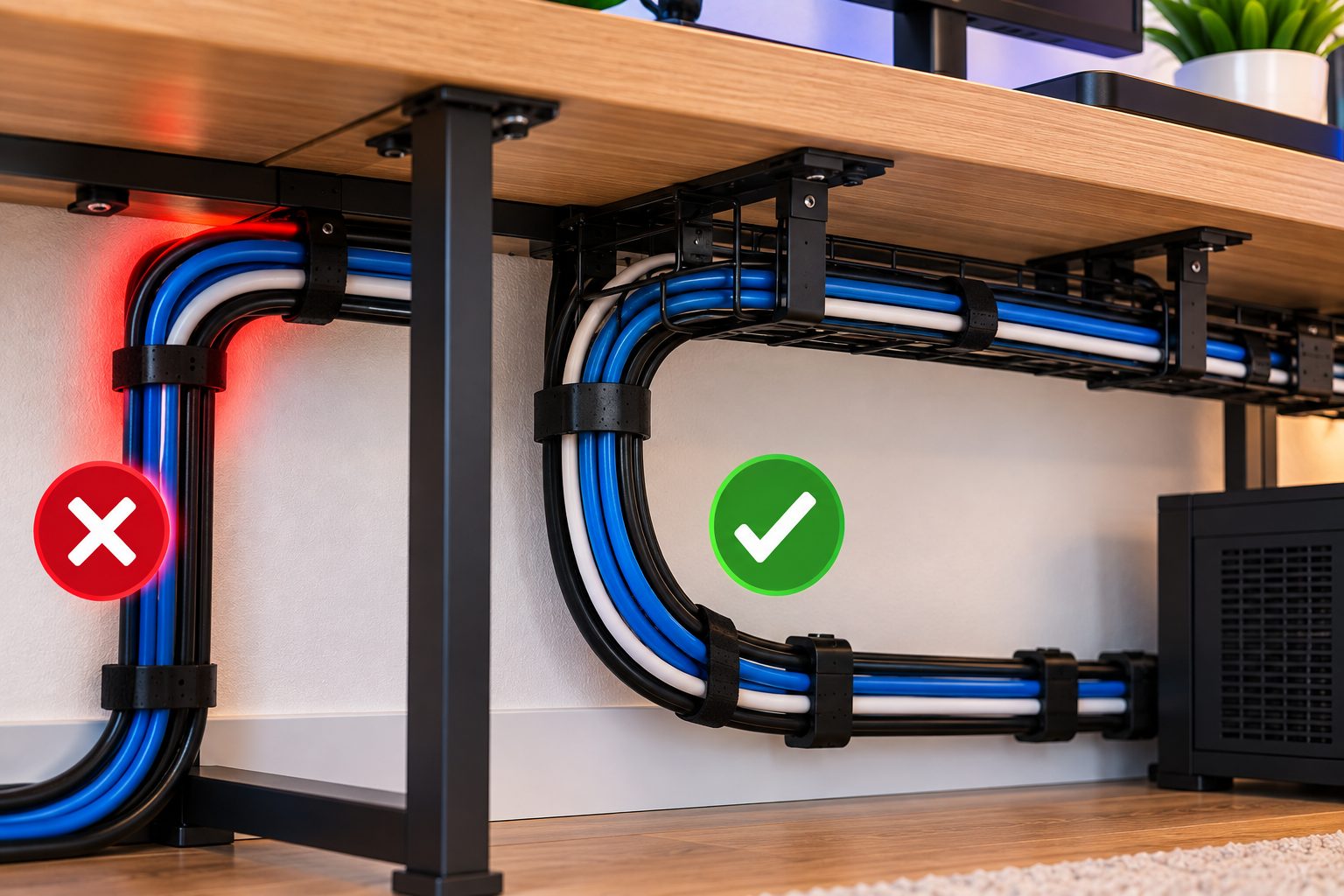
PC cable wiring should not be made too sharp merely to keep everything tidy.
There should be enough room available to allow the cables to bend gently. Never place any heavy objects on top of cables or keep them stuck between walls and furniture.
While installing the cables along the edge of a desk, do not try to force them to go through sharp corners.
This is especially applicable to those cables which have to be pulled out repeatedly.
8. Manage Your Monitor Cables
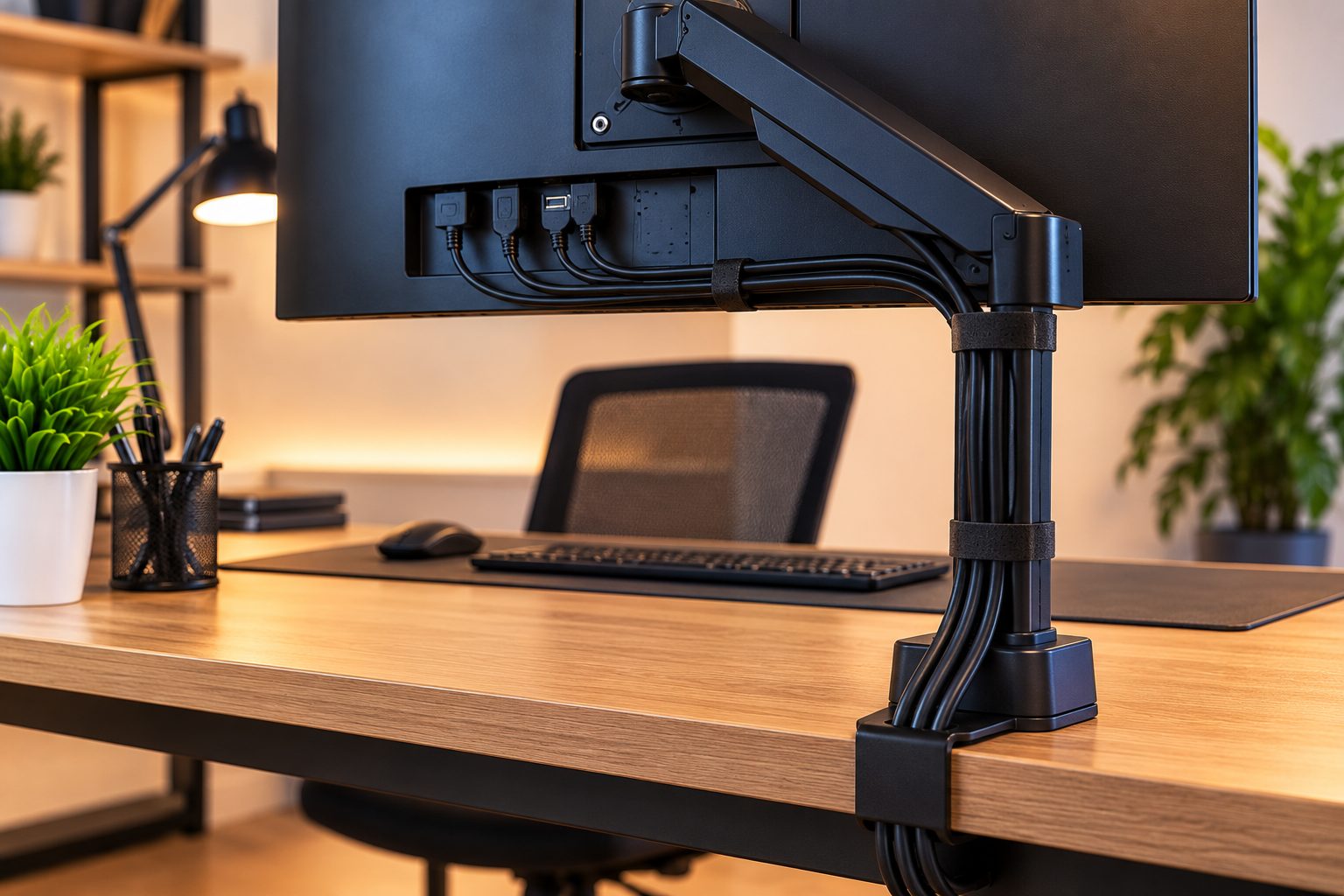
There can be numerous cords for the monitor, ranging from its power, video, USB, and even audio connections.
Begin by figuring out which ones are necessary. Then move the wires to the back part of the monitor and downwards behind the table.
Try to utilize a built-in cable management system, if one exists.
In the case of having multiple monitors for gaming, think about the placement of wires before installing them all together.
9. Organize RGB and Gaming Accessories
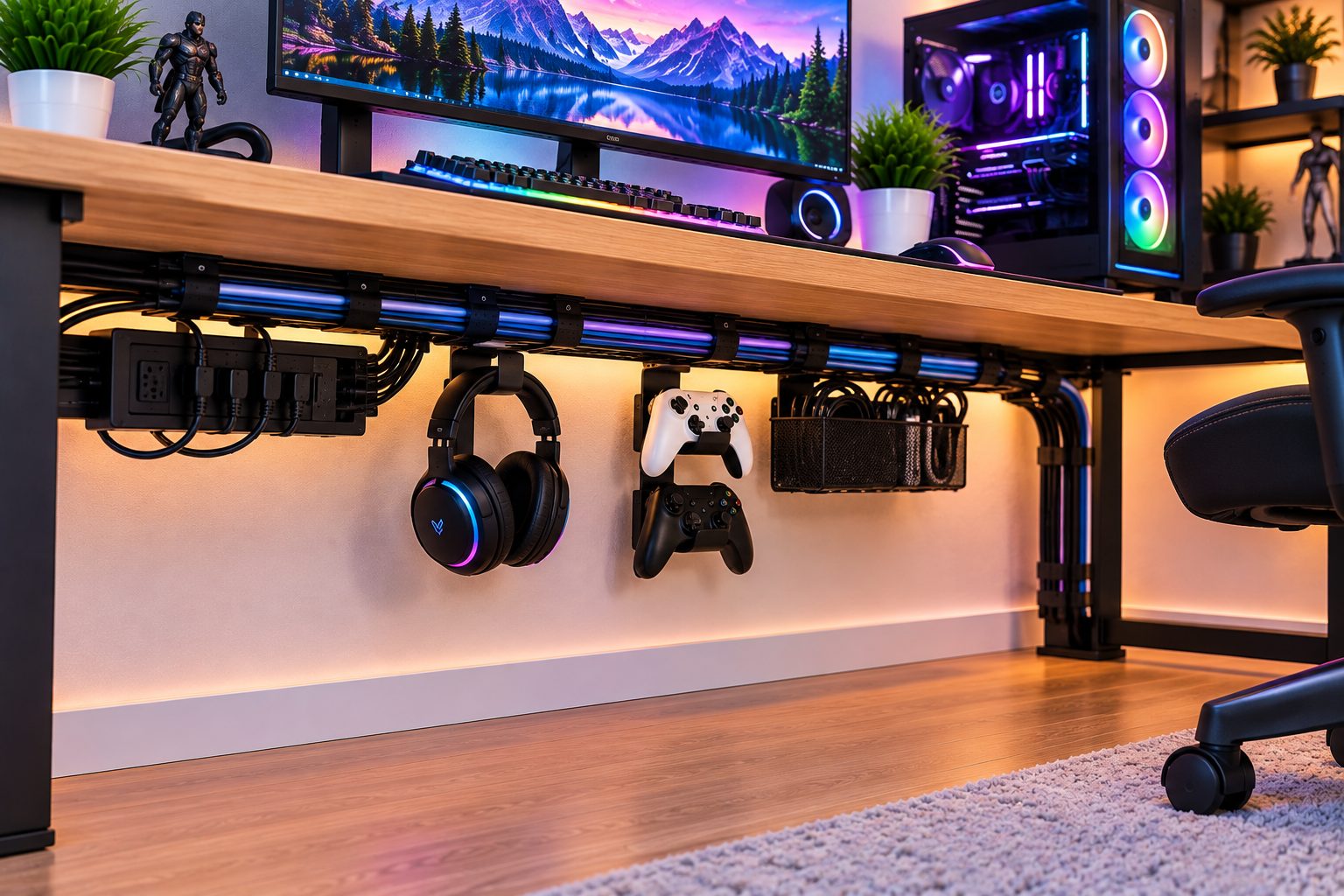
Lighting, cooling fans, gamepads, speakers, microphones, webcams, and any other accessories for gaming can bring some additional cables to your system.
Instead of plugging everything in and then trying to organize it, think about the path that each cable will follow before plugging things in.
In some cases, a USB hub can minimize the number of cables plugged into the computer, but the hub needs to fit the hardware you use.
Make sure that your frequently used accessories are easy to disconnect without having to untangle the whole setup.
10. Keep Your PC Area Easy to Clean
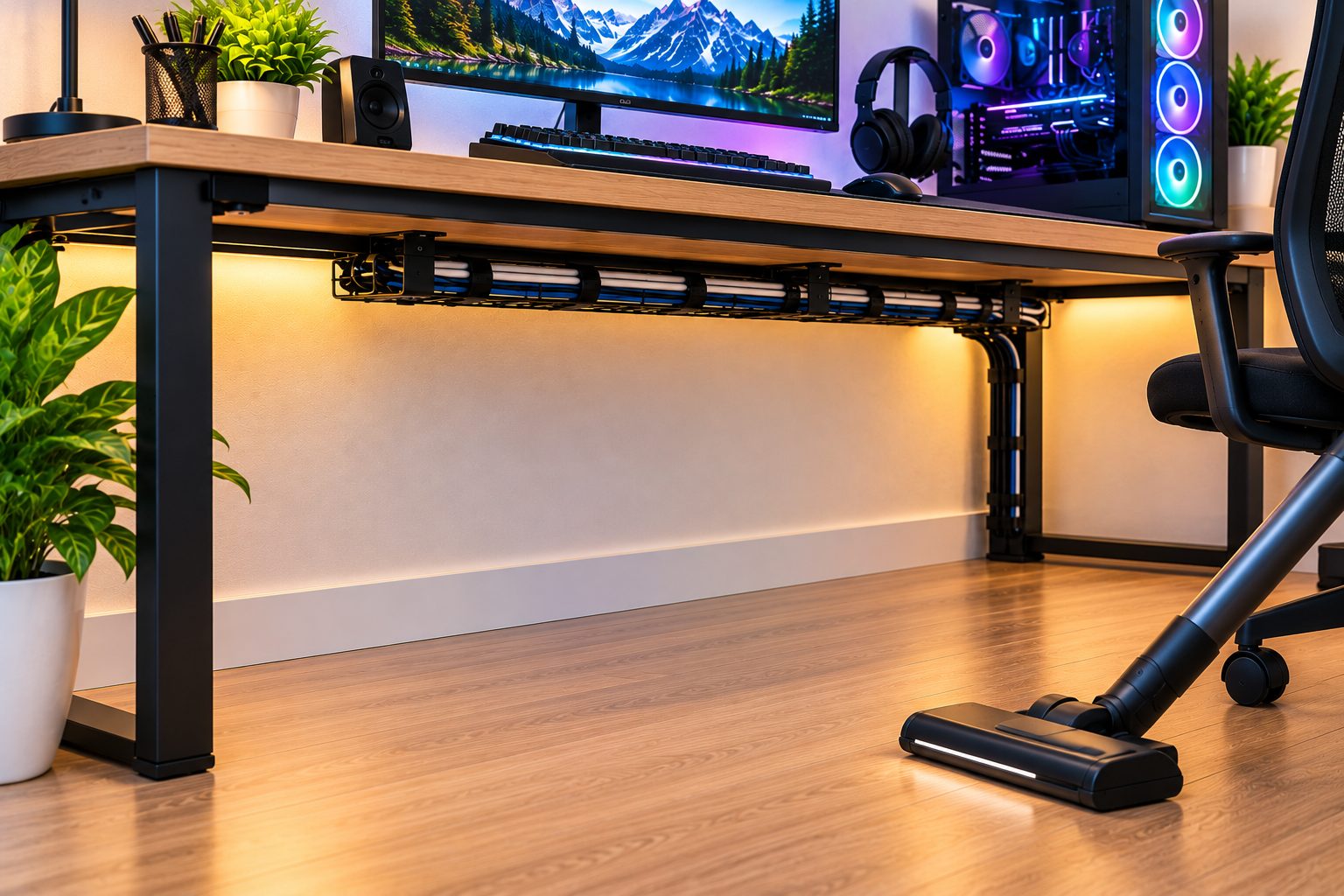
Dust tends to accumulate near the computers, monitors, desk surfaces, and even cable collections.
Never set up your computer in such a way that the cable collection becomes extremely compact that you cannot access the space behind the computer.
Do not obstruct the ventilated areas on your computer through cable connections, boxes, or any other material.
Always disconnect the components only when required during cleaning process.
11. Use the Right Tools for PC Maintenance
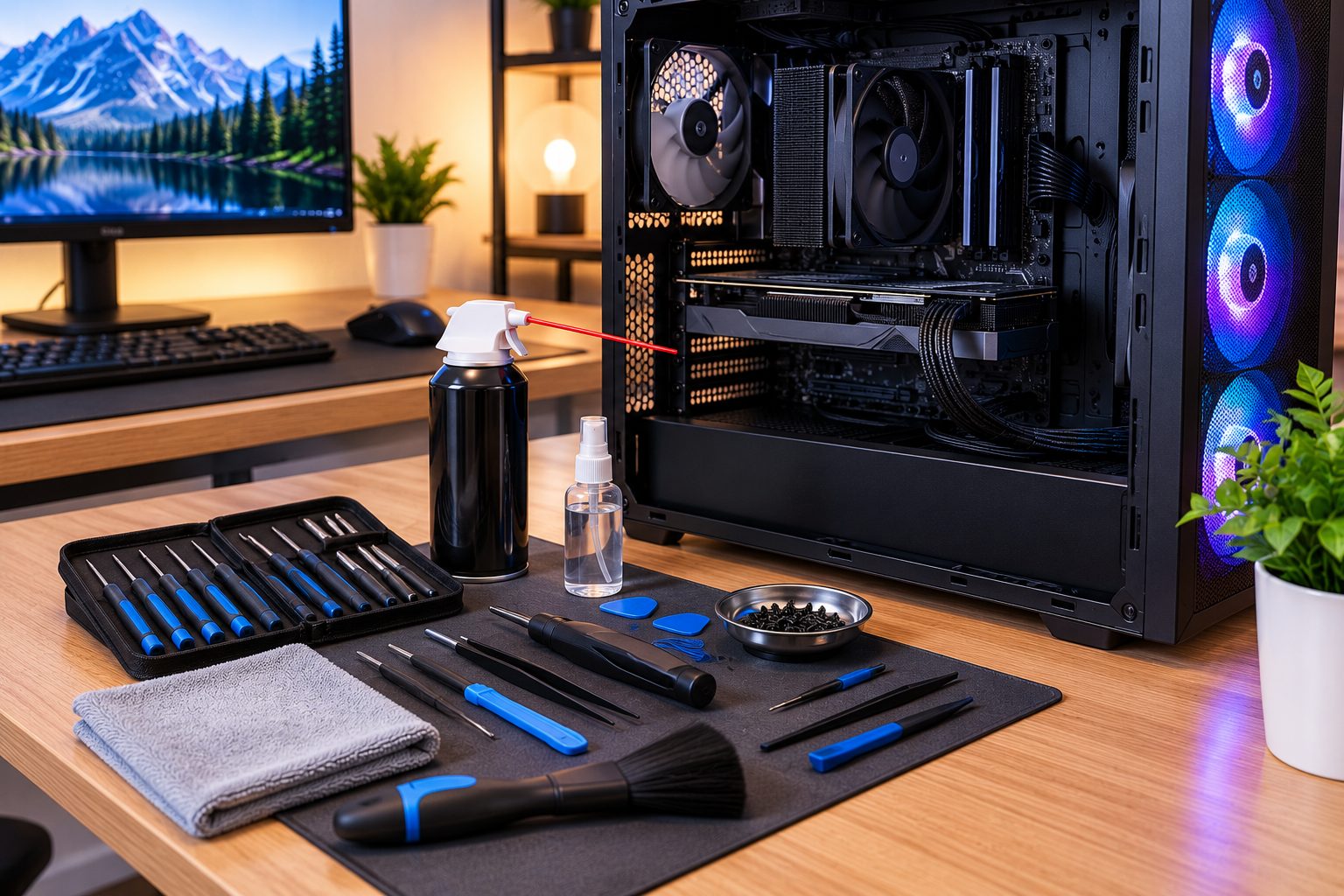
The gaming system may sometimes require maintenance that includes replacement, modifications of connections, and cleaning of the PC.
Certain tools could make such tasks easier to accomplish. For different tasks, you could require screw drivers, cable cutters, pliers, cable management accessories, and other tools.
For more technical and sophisticated electrical installation and workshop tasks, there are Industrial Electrical Power Tools used for certain electrical and industrial applications. They are not the same as basic accessories typically required for cable management of the PC and thus should be selected based on the task.
For general gaming system maintenance, special industrial tools are not necessary.
12. Leave Extra Cable Length
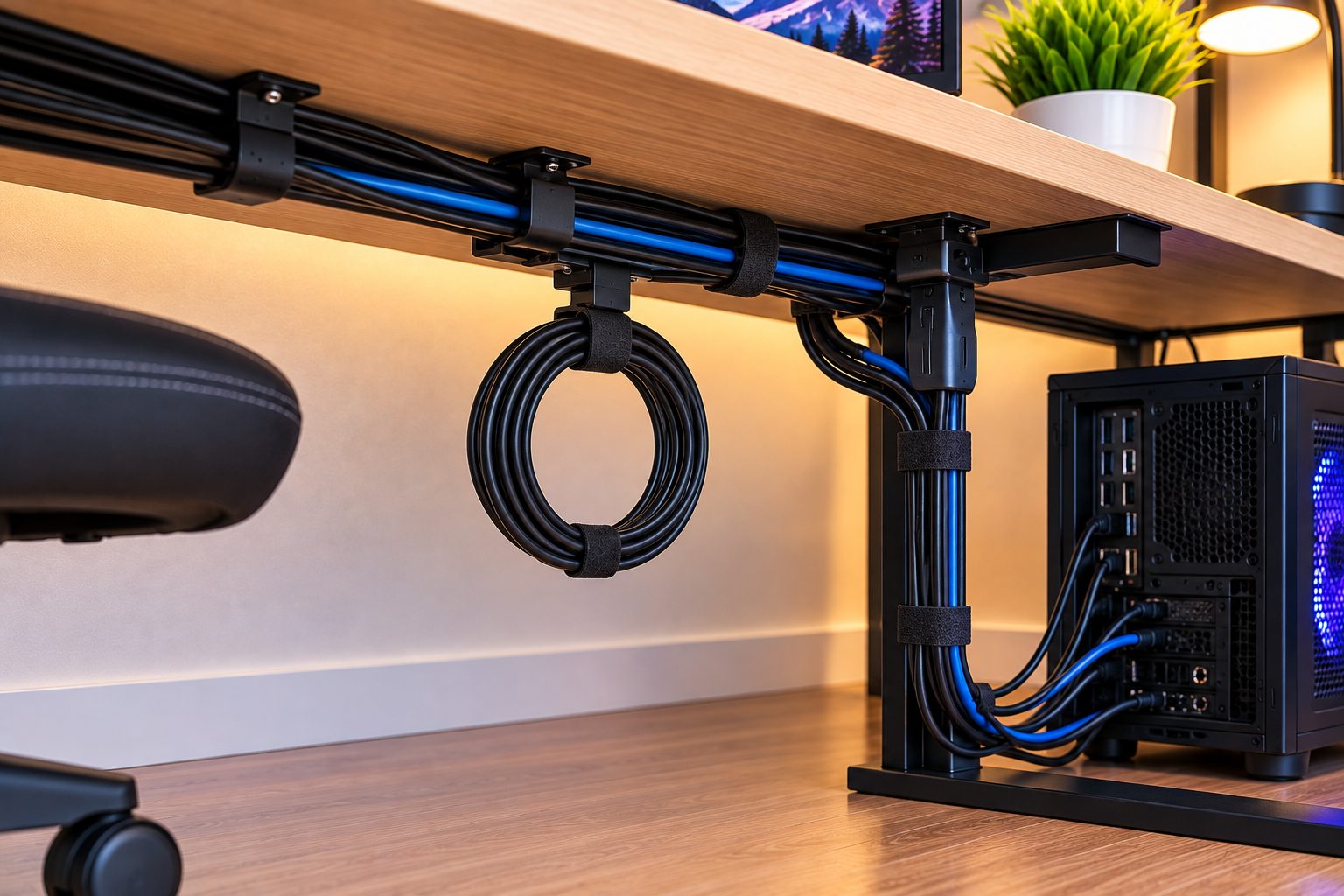
It may seem easy and efficient to minimize the length of each cable to its smallest size. It is important, however, to leave enough slack so that maintenance in the future will be made much easier.
For instance, when you decide to shift your monitor a little bit or change your keyboard, you won’t have to redo all your cables.
Keep extra length of cable organized and not just left hanging around.
An extra cable can be tied using a reversible cable tie or stored inside a cable sleeve.
13. Label Important Connections
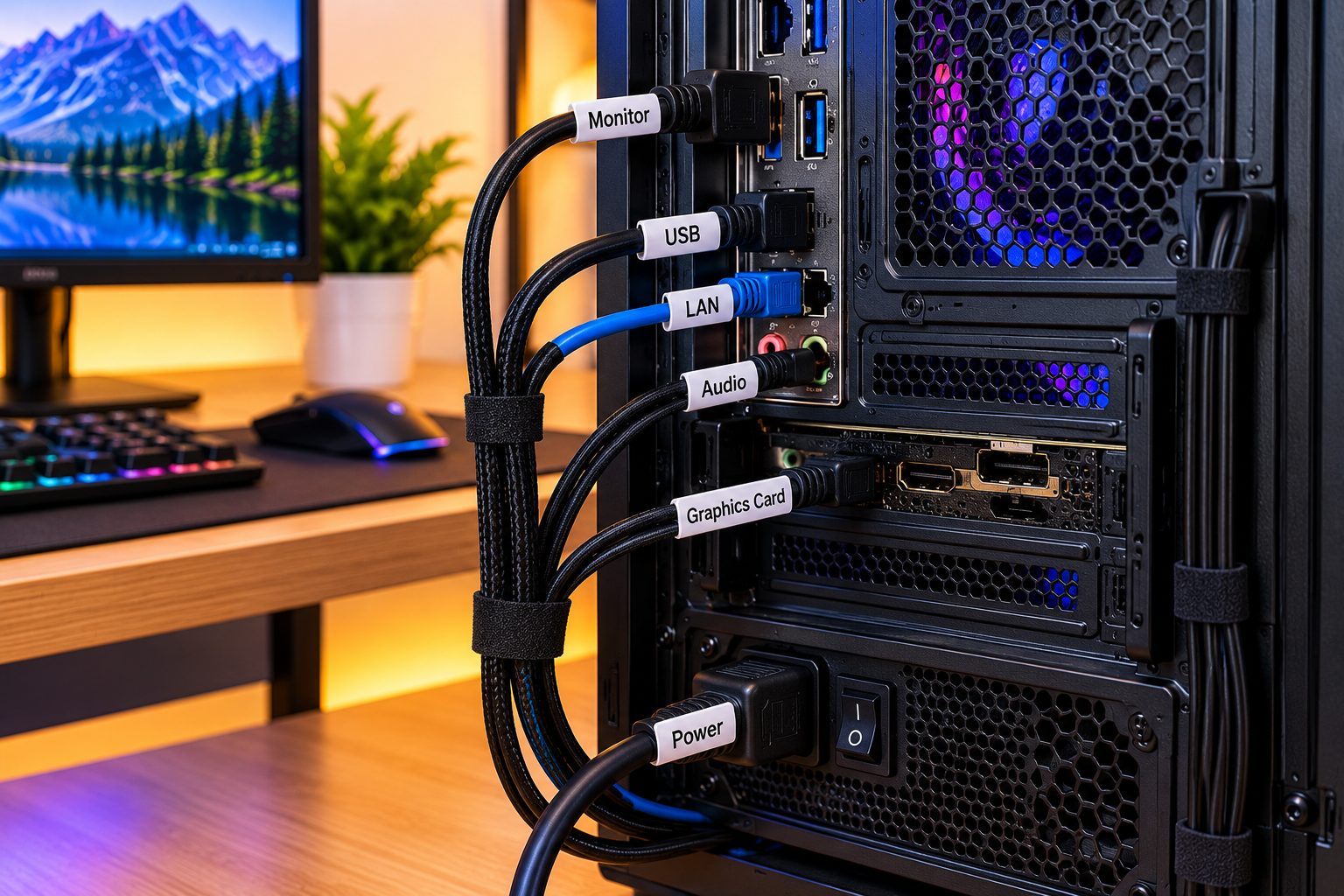
Labels may prove to be very handy when you have multiple similar cables on your gaming system.
Such connections as:
- Main Monitor
- Secondary Monitor
- Computer Power Connection
- Ethernet
- Speakers
- Microphone
- Webcam
- USB Hub
- RGB Controller
are just some examples of connections that can be labeled.
There is no need to make complicated labels. Simple descriptions should suffice.
14. Check Your Cable Management Regularly
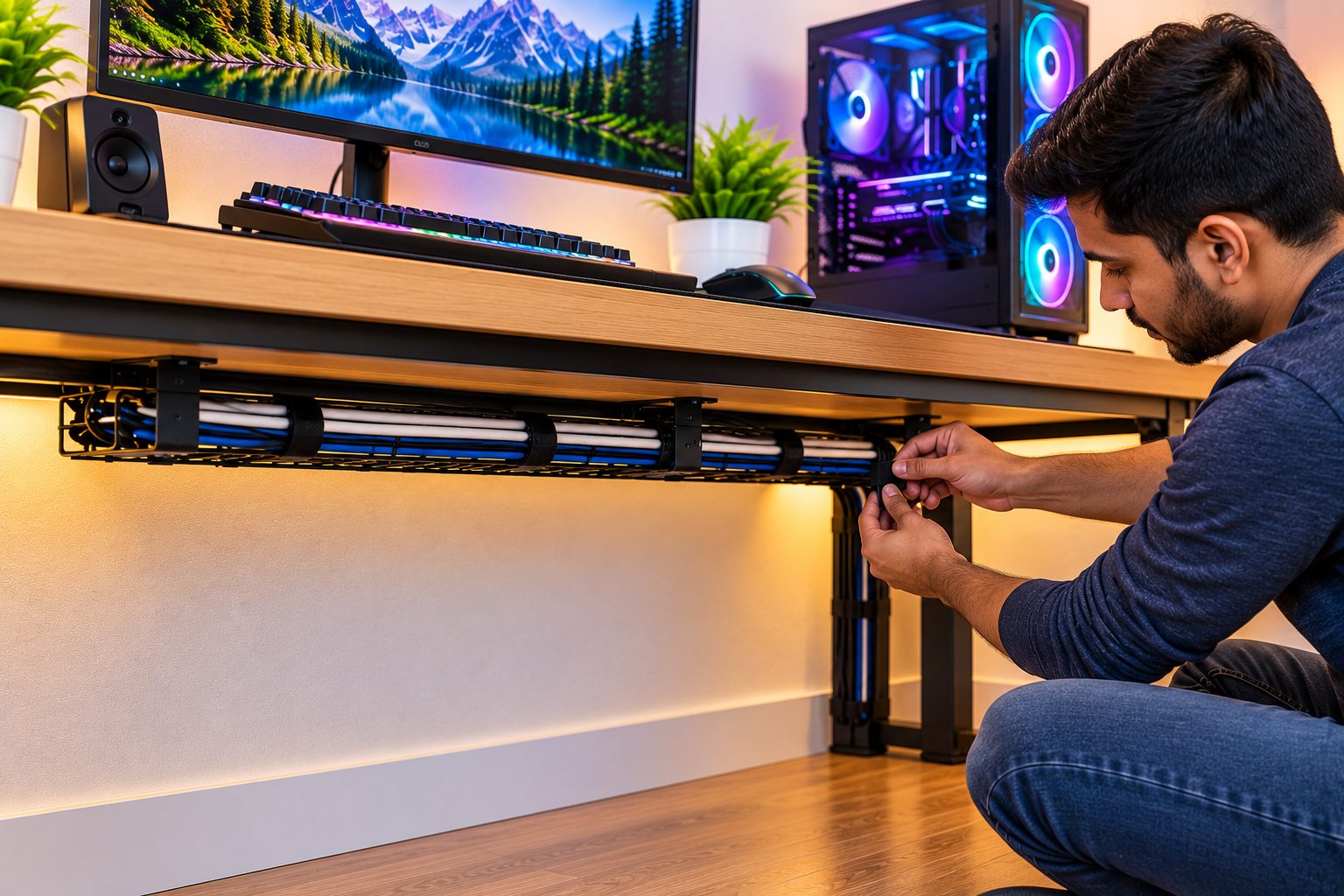
Cable management is a continuous process, and it is likely that your arrangement will change if you add another monitor, change the keyboard, or install any other gaming equipment.
Check on the cables every few months and eliminate the ones that you do not need anymore.
You should look for cables with cracked insulation, loose connectors, extended cables, and cables that get stuck beneath your furniture.
In most cases, it is best to replace a cable rather than continue using one with some damage.
A Simple Cable Management Setup
For some gaming desks, a basic arrangement will consist of:
- A cable trough beneath the desk
- Proper cable ties or reusable ties
- Cable clips to route cables
- A cable tube for bundled cables
- Labels for key connections
- Distinct routes for cable groups
- Sufficient slack for equipment movement
One does not have to spend extra money on various accessories to get a clean setup. Planning is sometimes even more valuable than buying a lot of cable management accessories.
A clean gaming setup begins with good cable management. The first thing you need to do is label all the cables and then plan the route for each one. Next, ensure that there is no clutter on the floor, make sure there are no sharp angles made by the cables, and use the right accessories to tie up the wires.
Sometimes, using cable ties will work perfectly when dealing with cables that take the same route. Cable trays, sleeves, and clips will be great to organize larger setups.
Industrial Electrical Power Tools are meant for certain tasks, and you should use them as such in case you need to perform maintenance or electrical works other than setting up your computer.
You can achieve a neat gaming desk through good planning.
Frequently Asked Questions
1. What is the simplest approach to organizing PC cables?
Identifying each and every cable, sorting cables following the same path, and holding them with the appropriate cable management devices will do the trick. The use of a cable tray underneath the table may assist in keeping power cables from being on the floor.
2. Are cable ties useful for managing PC cables?
Yes. Cable ties can be applied to sort and tie up the PC cables. Do not tighten them too much to avoid damaging or stressing the cable insulation.
3. Should I use separate power cables and data cables?
It will be better to keep power cables and data cables separate for easy cable management depending upon the devices being used and the way they are installed.
4. What can I do to prevent gaming cables from lying on the floor?
Use cable trays and clips and tie them up properly behind the desk.
5. How can I control cables when I use two monitors?
Cables must be distinguished first as power and video cables. Keep cables at the backside of the desk and organize cables along the same path.
Related Post:

